(Most people will ignore this for the reasons mentioned in the topic.) But consider giving it a try. )
Here’s how to do it:
1. Open MS Word and click on “Add-ins.” (“Add-ons”).
In the Add-ons store, look for an add-in called GPT for Excel Word. Add it to Word.
Once you’re done, its icon will appear in the ribbon.
2. Visit OpenAI(dot)com and log in to your account.
Instead of going to ChatGPT, click on API — Application Programming Interface. This will take you to the OpenAI platform.
What is an API?
Imagine you go to a restaurant. You want to order a certain dish, but you don’t communicate directly with the chef.
Instead, you browse the menu and place your order.
In this case, the menu card is the API. It is a tool that allows you to communicate with your chef.
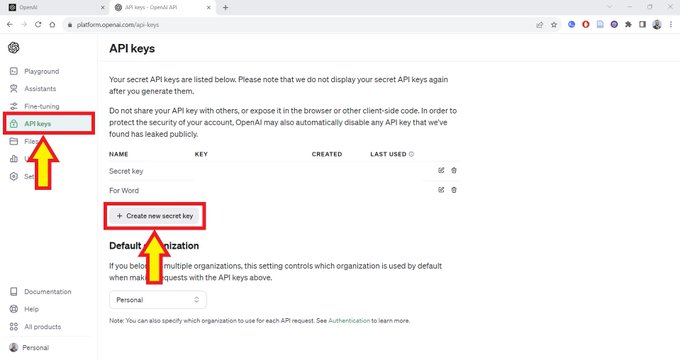
3. In the platform, click on “API Keys” and then on “Create New Key”.
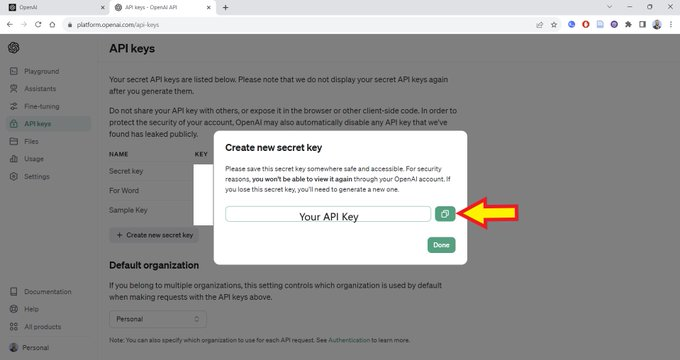
4. OpenAI will generate your secret API key. Copy this key.
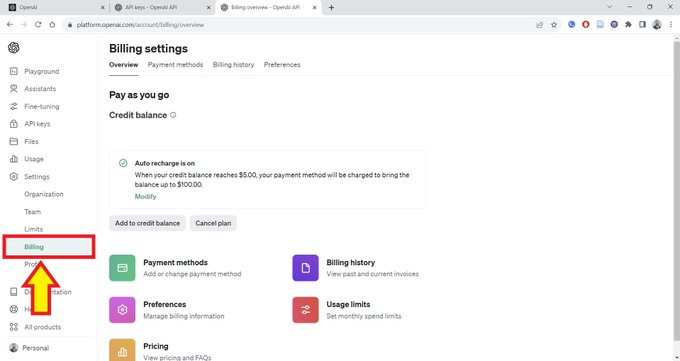
5. You need to purchase “credits” to use OpenAI’s API key.
If you have just created an OpenAI account, you will be able to try it for free for three months. After that you need to pay.
That’s why most people won’t try this, and it’s understandable. But if you have the ability, I recommend you give it a try.
6. Go to your MS Word.
Open “GPT for Excel Word” and click on the three horizontal bars in the top left corner.
Then click on API Key and paste your OpenAI API key.
Now your MS Word and ChatGPT are connected.
7. Now you can use this plugin as your writing assistant.
Enter a prompt in the chat bar, just like in ChatGPT.
Here, the author is creating an outline for a journal article.
Click “Insert” and it will insert text into the document.
8. If you use Google Docs,
Please open a new document and click “Extensions.” (“Extension”).
Select Add-ons, and then select Get add-ons. (“Get add-ons”).
In the Google Workplace Marketplace, look for “GPT for Sheets and Docs.” (GPT for Tables and Documents”).
Install this add-on.
9. Click Extensions again,
You will see the add-on. Open the plugin’s menu and select “Set API keys.” (“Set API Key”).
Paste your API key.
Now your Google Docs and ChatGPT are connected.
10. To use the add-on,
Click Extensions, and then select Launch. (“Launch”).
Once the add-in is launched, you can start writing prompts.
ChatGPT may take a while to respond, depending on the load on its API.