You can use it offline and protect your data privacy.
Best of all, you can install it for free!
Here’s how to do it: (1/5)
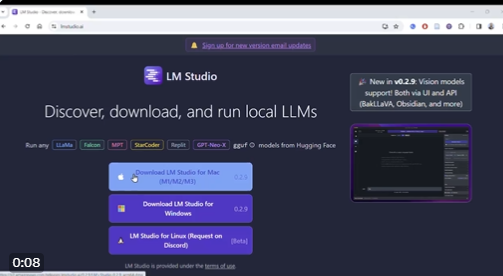
1. Visit LMTustudio(dot)AI and download the studio version compatible with your device.
Open the installation file and install LM Studio on your computer.
2. Once LM Studio is installed, open it.
Enter the name of the LLM you want to use in the search bar and click “Go”.
In this tutorial, the author will use LLaMa, an open-source model from Meta AI.
On the left side of the screen, you’ll see different versions of LLaMa. On the right is the “quantization” of the different models.
At the top of the “Quantify” column, you’ll see a checkmark with “Should Work”. This indicates that your computer hardware meets the requirements of the model.
If your hardware doesn’t meet the requirements of a particular model, you won’t see “Should Work”.
Checked out the Falcon, which told me that running the model requires more than 150GB of memory.
3. Select the model and version you want to download.
Click the “Download” button and wait for the download to complete.
If you’re just starting out, I recommend downloading models under 10GB.
Larger models take a lot of time to download and can slow down downloads.
4. After downloading the model, tap the chat bubble in the left taskbar.
Click on the bar at the top to load the model. Once the model is loaded, you can customize its Inference Parameters through Advanced Configuration.
You can customize the randomness and length of your responses.
5. Now you can start using the model.
Type your question in the chat bar and it will answer.
Response Quality: I had this chat using LLaMa 2 7B and it hallucinated at the beginning. It would seem, this model is working hard, but not enough.
Still, having a local chatbot on your computer is very useful. It can certainly help you brainstorm outlines for journal papers and grant proposals.