Using Google is an essential skill for cross-border e-commerce, registering foreign apps, Twitter, etc.
However, there are still many newbies who encounter issues such as “this phone number cannot be used for verification“ when registering Google Mail, etc.
Today we will share the latest method of Gmail account registration.
This is a perfect solution to the problem that this phone number cannot be used for verification (the test works).
You should pay attention to the following things to note when registering for Google Mail:
First, Google will conduct indiscriminate detection of new accounts, that is, there will be abnormal accounts or cannot be logged in, or mobile phone needs to be re-verified! Therefore, after successful registration, you should find the same from QQ and hang a common IP.
Second, if your Google account is banned or your Google service is disabled, you need to file a complaint.
Third, it is recommended to use the US IP and US time zone to log in to the account, please do not log in to more than 5 accounts on one device and IP.
Register for Gmail tutorial on your computer
To register Gmail on the computer, we need to use scientific Internet access.
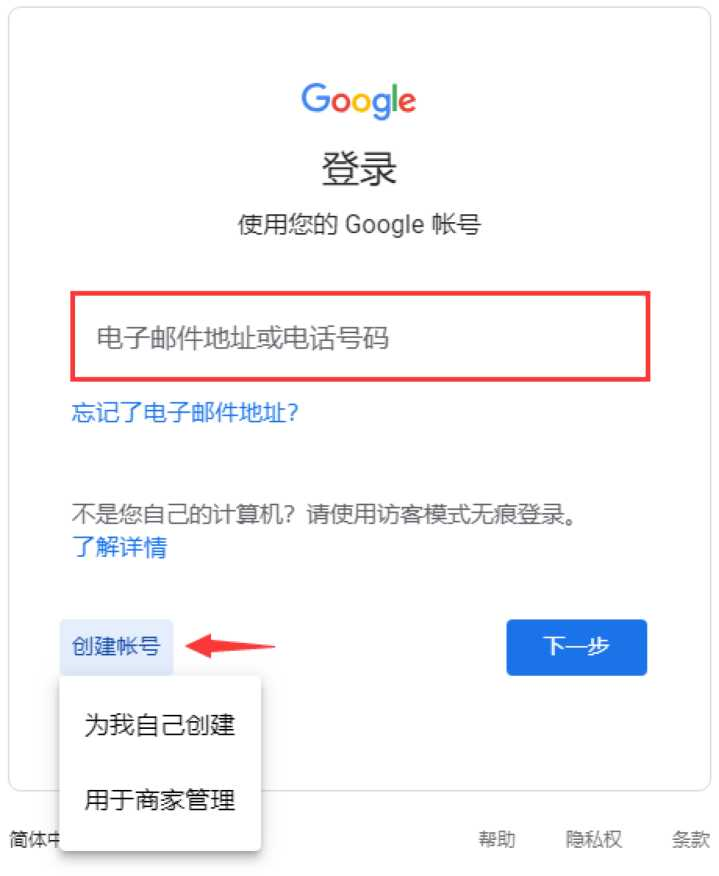
Step 1: Open the Google official website, click the login button on the upper right side, and you will come to the page shown in the picture below, we can use an existing account to log in, or click “Create Account” to register a new Gmail account.
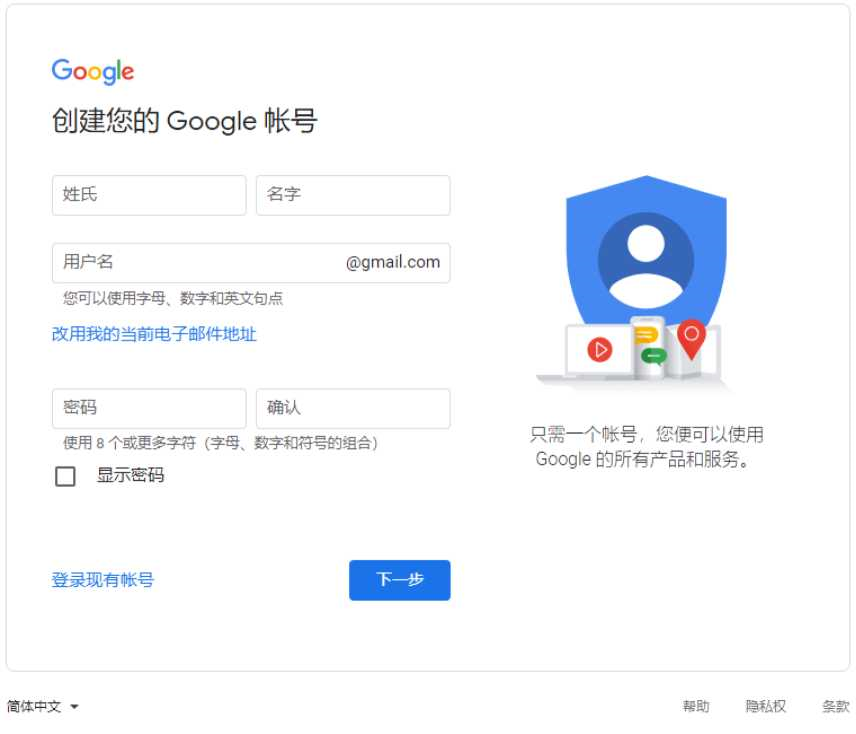
Step 2: On the Create your Google account page, enter the account information you want to create: including your last name, first name, username (email address) and password, and click Next to continue.
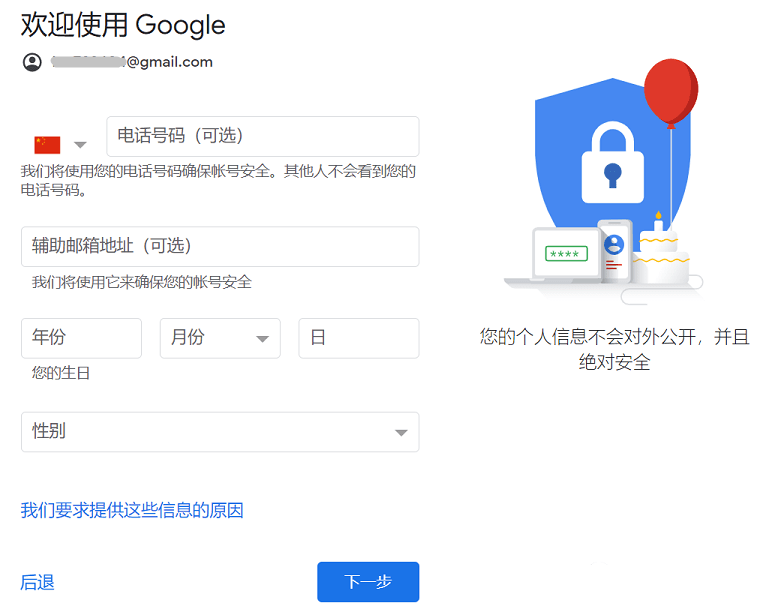
Step 3: This is a more critical step, and different people may encounter two different situations when registering.
In the first case, if you’re lucky (related to many factors, such as a clean IP, haven’t registered a Google account recently, etc.), your account registration page looks like this (as shown in the image below). Among them, the phone number is (optional), that is, you don’t need to enter your phone number, select your birthday time and gender to go directly to the next step.
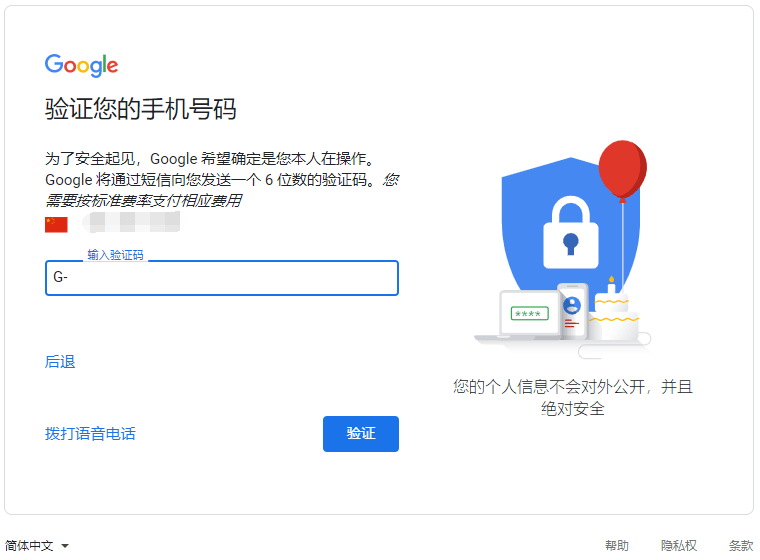
The second scenario, which most users encounter when registering for a Google account, requires verification of mobile phone number to complete account registration. Select China (+86) for the area code, enter your phone number, and click Next to continue.
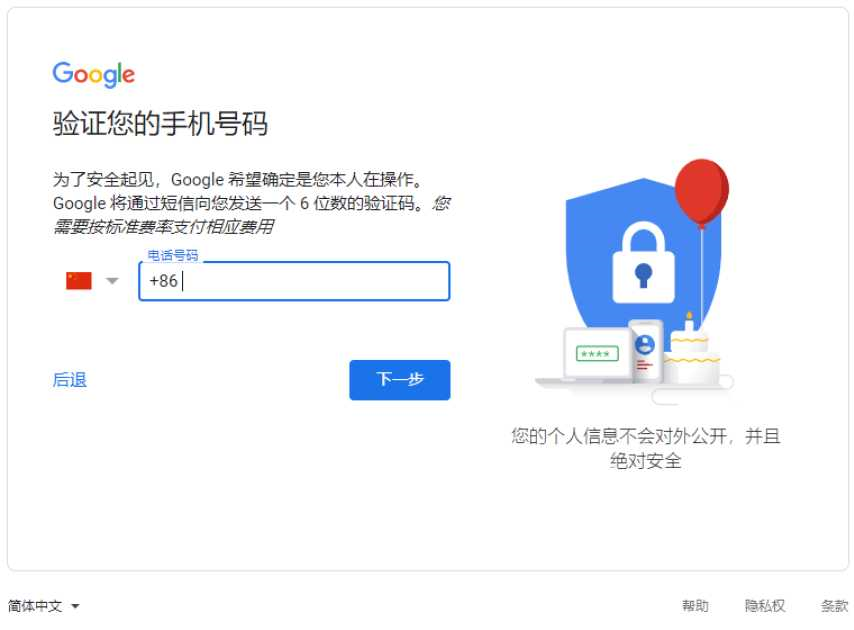
Some people, for example, I received a verification code from Google on my mobile phone at this step, and I just entered the verification code directly in the input payment.
Others enter their phone number and see a message that this phone number can’t be used for verification.
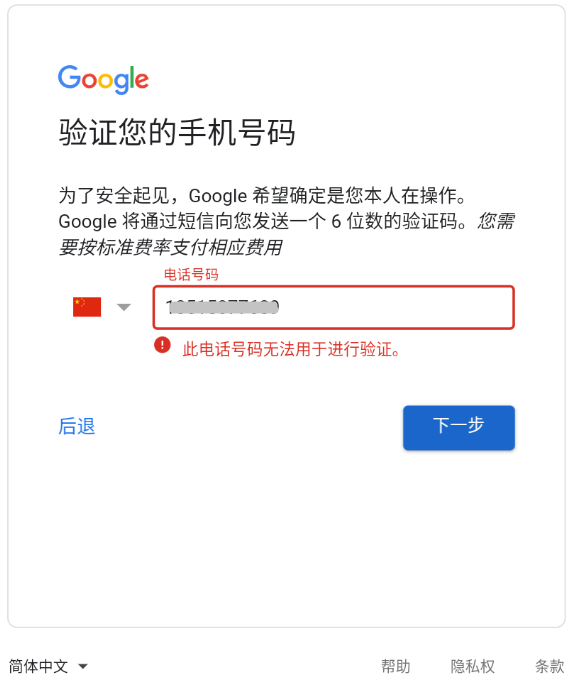
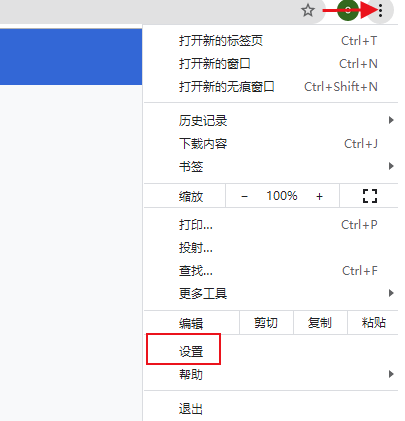
How to solve this phone number not being able to be verified: If we encounter a situation where the phone number cannot be verified, we can click on the three dots in the upper right corner of the Chrome browser to find the settings button in the drop-down menu.
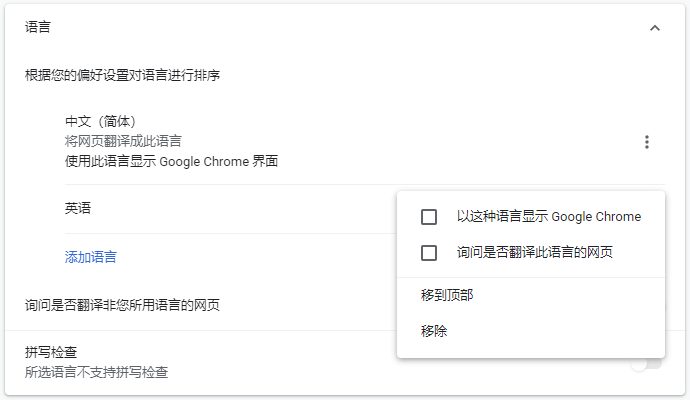
Then select “Language” in the “Advanced” menu on the left, add English (or Traditional Chinese) and select “Show Google Chrome in this language”, then select “Remove” Chinese (Simplified), and reopen the browser.
If nothing else, your mobile phone can receive Google’s mobile verification code after the above settings. After verifying your phone, select your birthday date and gender, then tap Next to continue.
If nothing else, your mobile phone can receive Google’s mobile verification code after the above settings. After verifying your phone, select your birthday date and gender, then tap Next to continue.
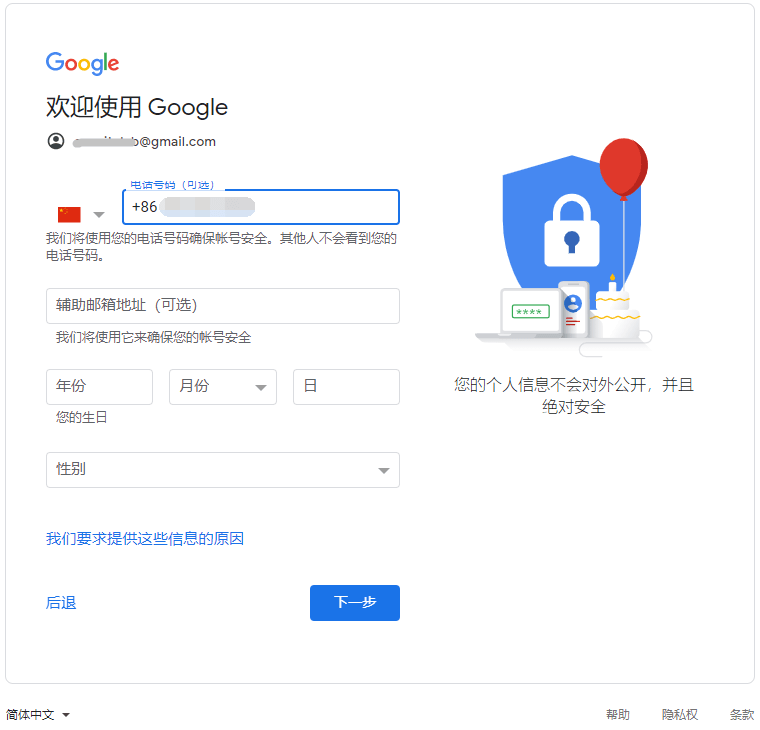
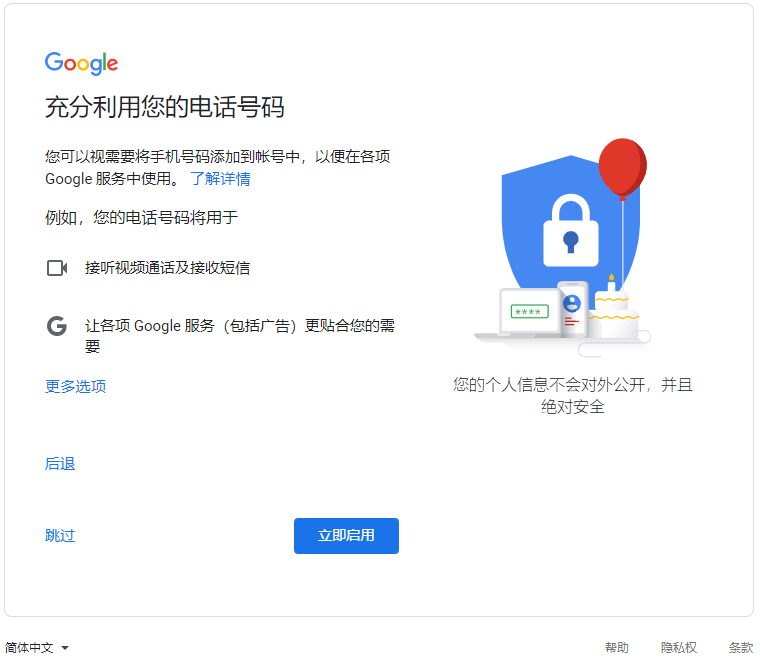
On the Get Best of Your Mobile Number page, select Enable Now or Skip buttons.
The last step: Privacy and Terms, directly click I agree to complete the registration of a new Gmail account.